
Days Calculator in Excel
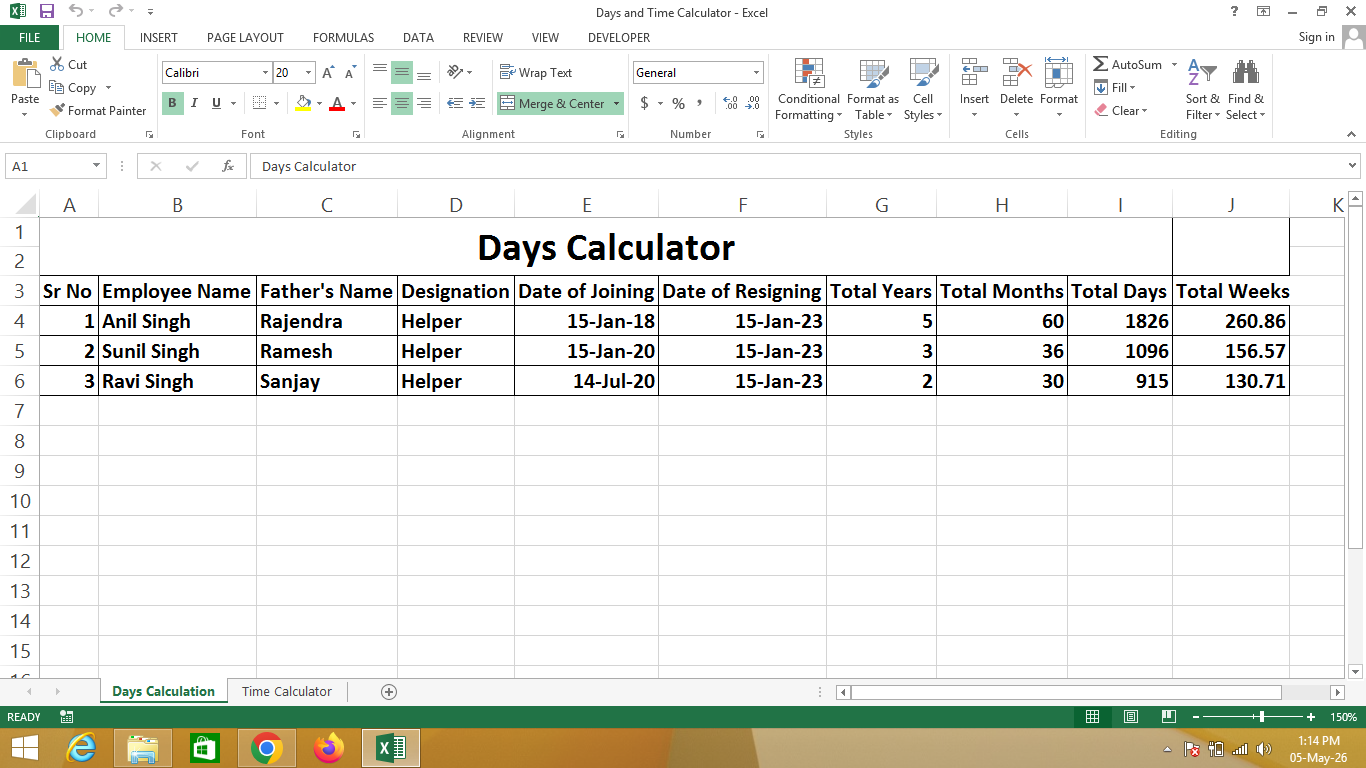
A Days Calculator in Excel is a useful tool created using Microsoft Excel that calculates the total duration between two dates, such as joining date and resigning date.
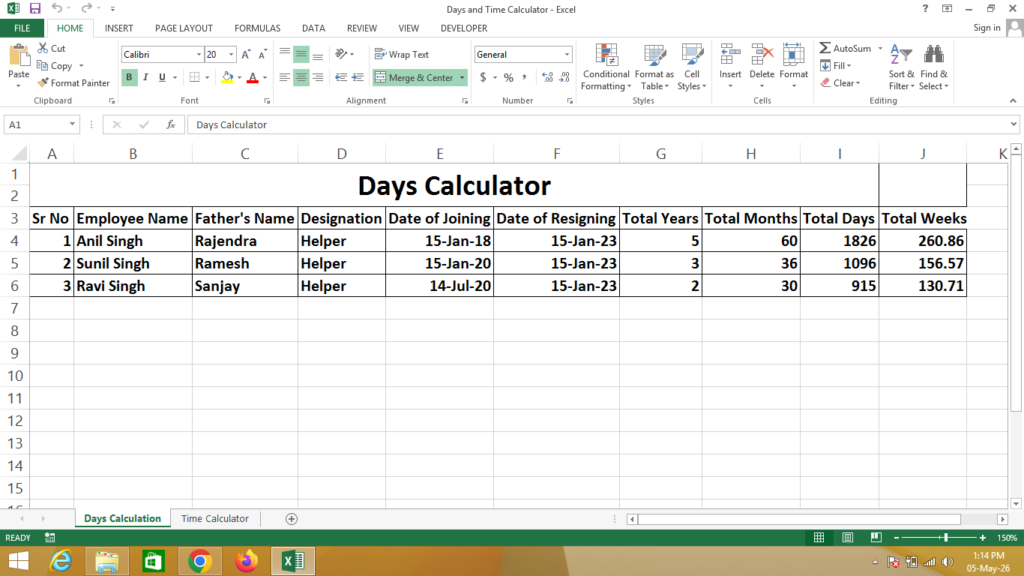
It helps determine how many years, months, days, and weeks a person has worked or how long a specific period lasts using simple Excel formulas.
🔹 Simple Definition
A Days Calculator is a structured sheet that shows:
- Starting date (Joining Date)
- Ending date (Resigning Date)
- Total duration in years, months, and days
- Total number of days and weeks
🔹 Key Columns
- Joining Date – Start date of work
- Resigning Date – End date
- Total Years – Completed years
- Total Months – Completed months
- Total Days – Total working days
- Total Weeks – Total weeks worked
🔹 Why use Excel for Days Calculation?
- ✔ Accurate date difference calculation
- ✔ Automatic breakdown (years, months, days)
- ✔ Saves time and avoids manual errors
- ✔ Easy to use and update
- ✔ Useful for HR and personal tracking
🔹 Real-life Uses
- Employee work duration calculation
- Salary and experience tracking
- Project duration calculation
- Student attendance or course duration
- Personal date tracking
Formula
Total Years = Datedif(Click on Date of Joining, Click on Date of Resigning,”Y”)
Total Months = Datedif(Click on Date of Joining, Click on Date of Resigning,”M”)
Total Days = Datedif(Click on Date of Joining, Click on Date of Resigning,”D”)
Total Weeks = Click on Total Days / 7
IF You Need a Help – Watch Video
Time Calculator in Excel
A Time Calculator in Excel is a useful tool created using Microsoft Excel that calculates the total working hours of an employee based on In Time and Out Time.
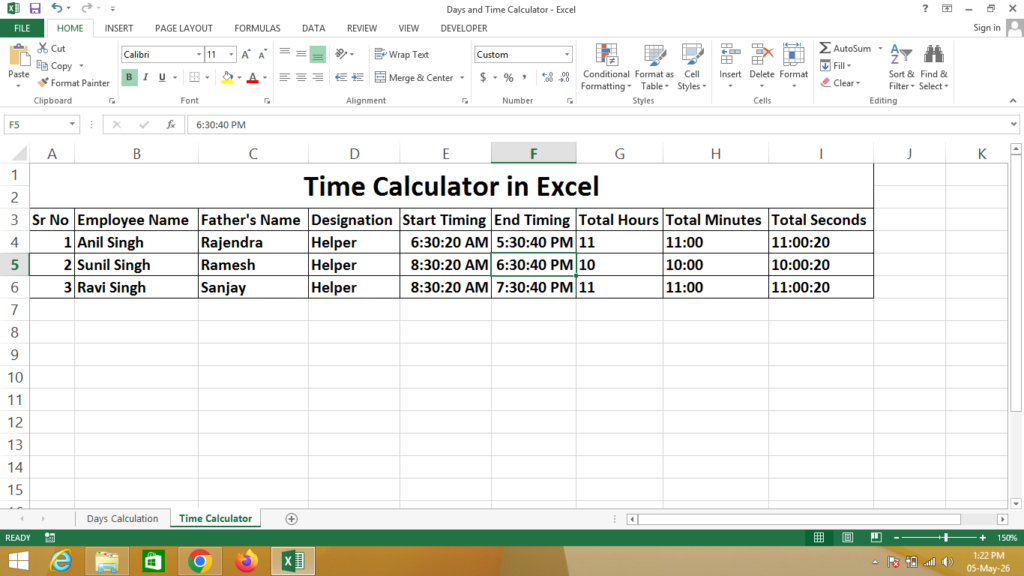
It helps track how many hours a worker has worked during a day and can automatically calculate total working time using simple formulas.
🔹 Simple Definition
A Time Calculator is a structured sheet that shows:
- Employee In Time (starting time)
- Out Time (ending time)
- Total working hours
- Optional overtime calculation
🔹 Key Columns
- In Time – Work start time
- Out Time – Work end time
- Total Hours – Total working duration
- Overtime (Optional) – Extra hours worked
🔹 Why use Excel for Time Calculation?
- ✔ Accurate working hours calculation
- ✔ Automatic time tracking
- ✔ Easy to manage employee records
- ✔ Reduces manual errors
- ✔ Useful for payroll and attendance
🔹 Real-life Uses
- Employee attendance tracking
- Office working hours calculation
- Salary and payroll systems
- Factory or shift-based work tracking
- Freelancer time tracking
Formula
Total Time = =TEXT(Click on Out Time – Click on In Time,”HH:MM:SS”)
Ai Formula
🔹 Formula Used in Excel
👉 Total Working Hours:
= B2 - A2👉 Convert into Hours Format:
= (B2 - A2) * 24👉 Overtime Calculation (Optional):
= IF((B2-A2)*24>8, (B2-A2)*24-8, 0)