1. Introduction
A computer system is made up of several components that work together to process data and produce meaningful information. The main components of a computer system are:
- Central Processing Unit (CPU)
- Memory Unit (MU)
- Control Unit (CU)
- Input Devices
- Output Devices
Each component has a specific function and plays an important role in the operation of the computer.
2. Central Processing Unit (CPU)
The CPU is the brain of the computer. It processes instructions, performs calculations, and manages data flow between other components.
2.1 Arithmetic Logic Unit (ALU)
The ALU performs all mathematical and logical operations.
Functions:
- Arithmetic operations: addition, subtraction, multiplication, division
- Logical operations: AND, OR, NOT, comparisons
- Decision-making operations
Example: Comparing two numbers or calculating total marks.
2.2 Control Unit (CU)
The CU manages and coordinates all activities of the computer.
Functions:
- Fetches instructions from memory
- Decodes instructions
- Directs data flow between CPU, memory, and I/O devices
- Ensures instructions are executed correctly
Note: CU does not process data itself; it only controls operations.
2.3 Memory Unit (MU)
The Memory Unit stores data, instructions, and results temporarily or permanently.
Functions:
- Stores input data before processing
- Stores intermediate and final results
- Supplies data to CPU when needed
Types of Memory:
- Primary memory (RAM, ROM)
- Secondary memory (Hard Disk, SSD, Pen Drive)
3. Input Devices
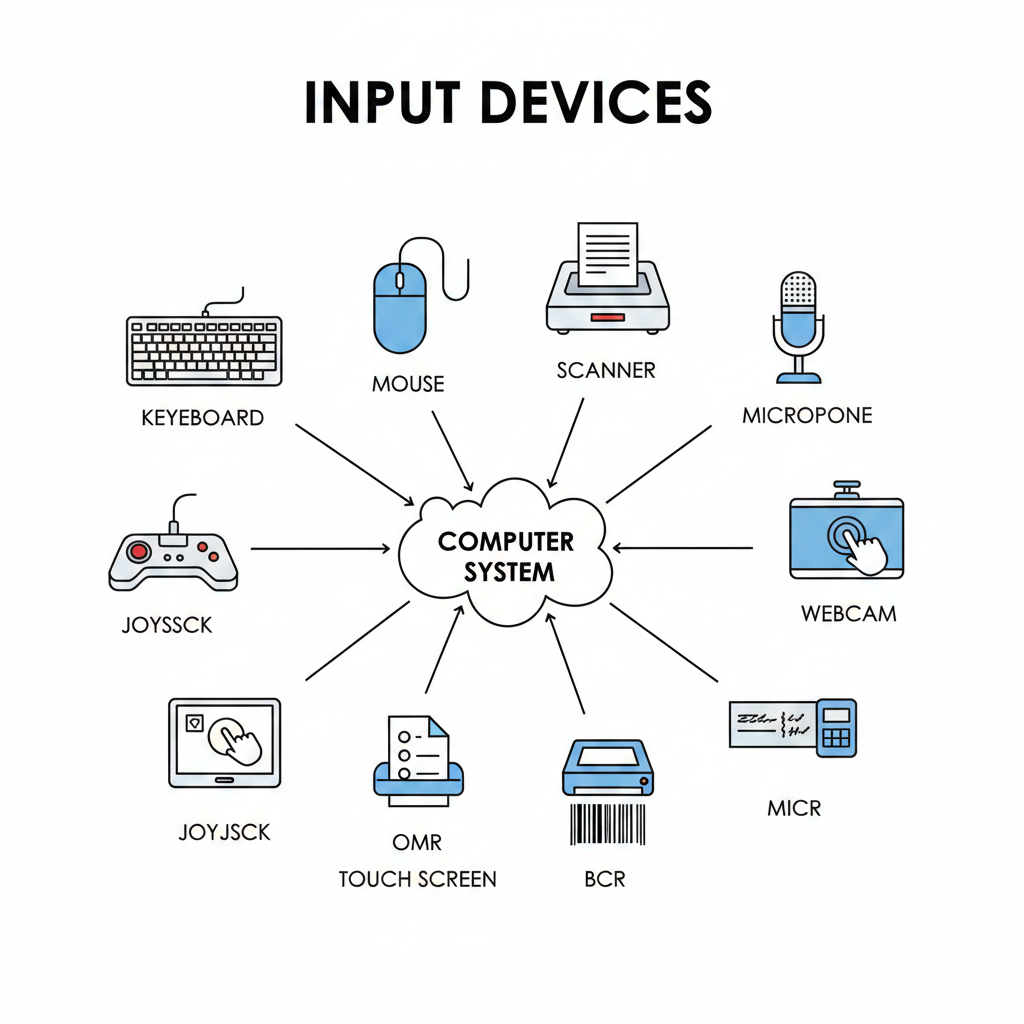
Input devices are used to enter data and instructions into the computer. They allow the user to communicate with the system.
Common Input Devices
- Keyboard – For typing text, numbers, and commands.
- Mouse – For pointing, clicking, and selecting items.
- Scanner – Converts paper documents into digital format.
- Microphone – Inputs sound or voice for recording or commands.
- Webcam – Captures images and videos.
- Joystick – Mainly used for gaming and simulations.
- Touch Screen – Accepts input through touch, used in ATMs, smartphones.
- OMR (Optical Mark Reader) – Reads marked answers on specially designed sheets, used in exams and surveys.
- BCR (Bar Code Reader) – Reads barcodes on products for billing and inventory management.
- MICR (Magnetic Ink Character Reader) – Reads characters printed with magnetic ink, mainly for bank cheques.
4. Output Devices
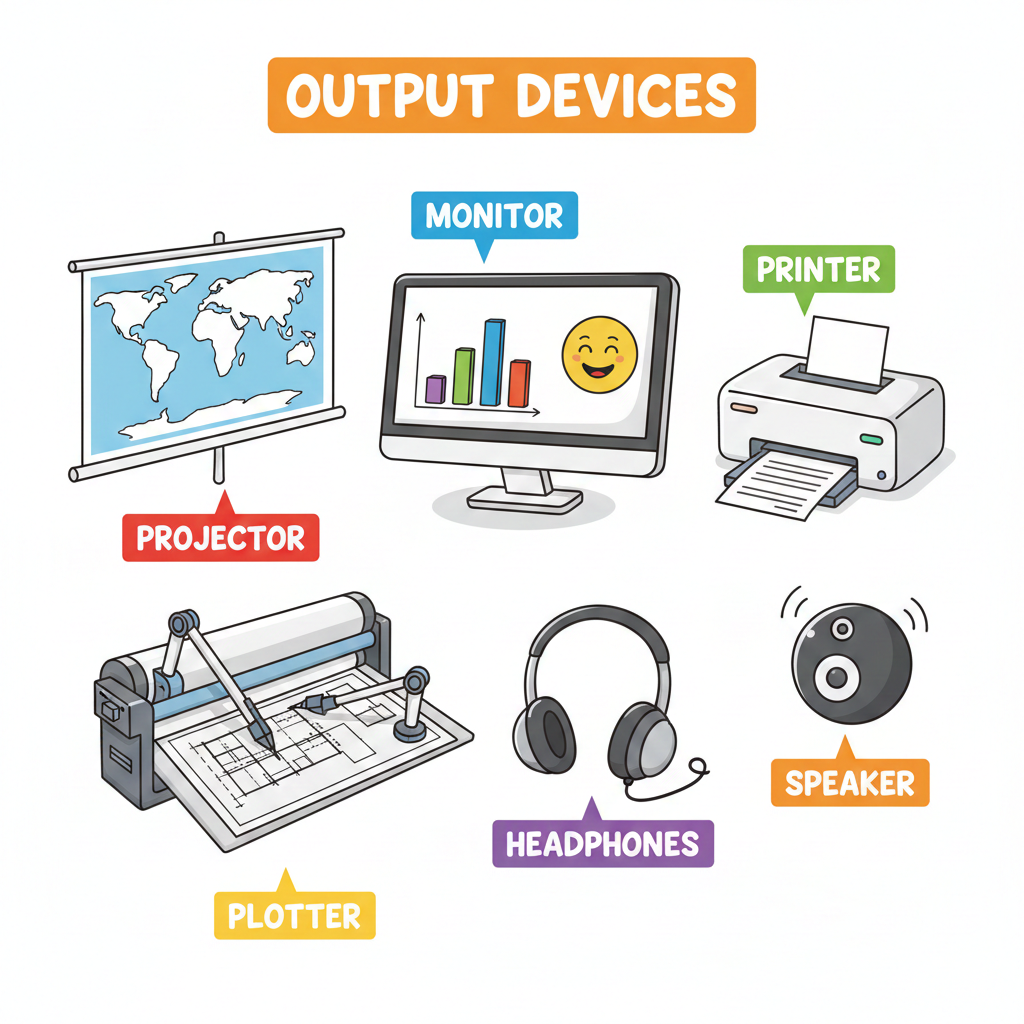
Output devices display processed data in a human-readable form.
Common Output Devices
- Monitor – Displays text, images, videos (Visual Display Unit).
- Printer – Produces hard copies on paper (Inkjet, Laser, Dot Matrix).
- Speaker – Outputs sound and audio.
- Headphones – Personal audio output device.
- Projector – Displays output on a large screen.
- Plotter – Prints large graphics like maps and blueprints.
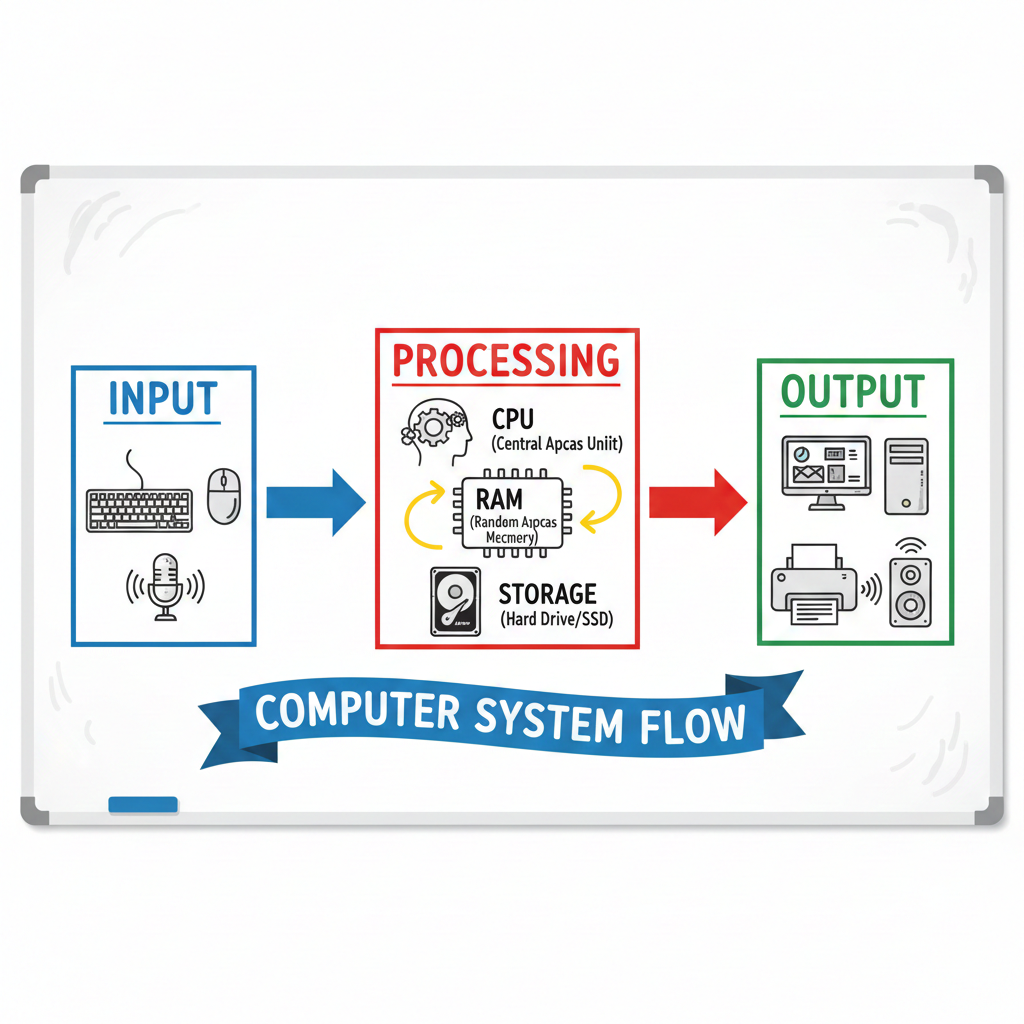
5. Working of a Computer System (Input → Processing → Output)
- Input devices enter data
- CPU (ALU + CU + MU) processes the data
- Memory stores intermediate and final results
- Output devices display results
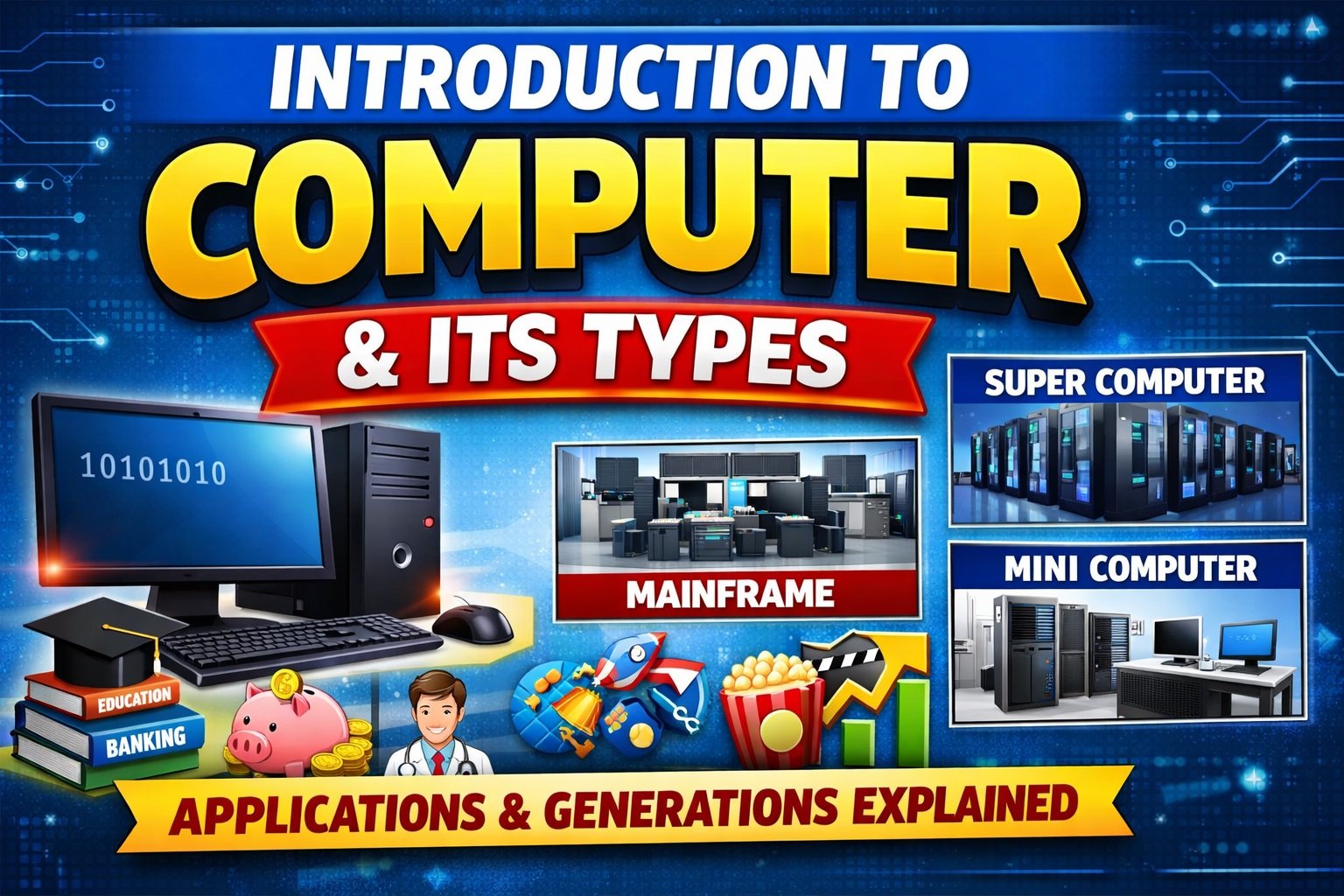
6. Applications of Computer
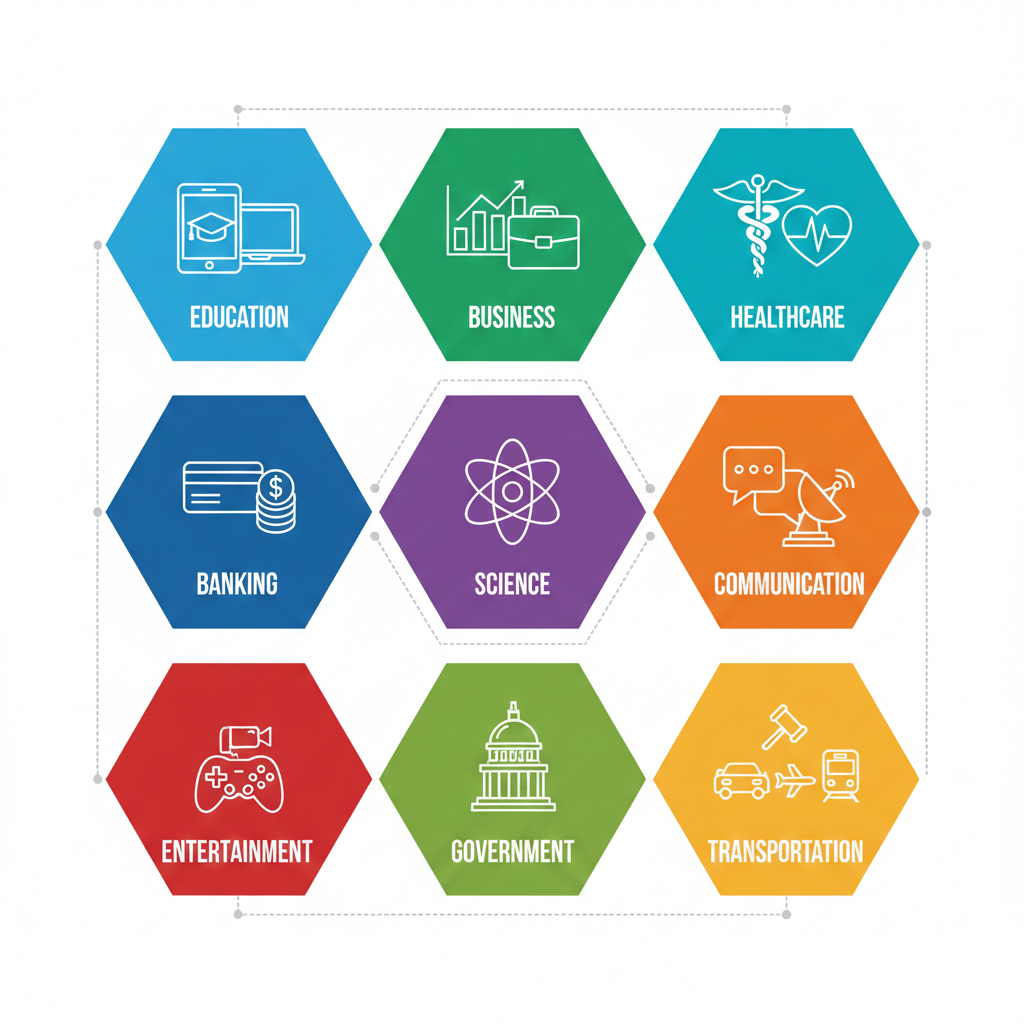
Computers are used in almost every field of life. Key applications include:
- Education: Online learning, e-learning platforms, virtual classrooms.
- Business: Accounting, billing, inventory, data analysis, ERP systems.
- Banking and Finance: Online banking, ATMs, cheque processing (MICR).
- Healthcare: Patient records, diagnosis, telemedicine.
- Science & Research: Weather forecasting, simulations, space research.
- Communication: Email, video calls, messaging.
- Entertainment: Gaming, animation, video editing, music production.
- Government Services: E-Governance, citizen data, online portals.
- Transportation: Ticket booking, GPS, traffic management.
- Daily Life: Online shopping, payments, smart devices.
7. Conclusion
Every component of a computer system plays a vital role. CPU processes data, input devices provide data, output devices display results, and memory units store information. Understanding components, input/output devices, and their applications is fundamental for students and beginners in computer studies.