Excel VBA QR Code Generator Using Macro

📘 Introduction
Excel VBA QR Code Generator Using Macro
Excel VBA QR Code Generator ek automated system hota hai jisme Microsoft Excel VBA Macro ka use karke QR Codes automatically generate kiye jaate hain।
Is method me user sirf Excel sheet me data enter karta hai aur VBA macro us data ko QR Code me convert kar deta hai। Yeh process manual QR code creation ko fast aur easy banata hai।
Iska use businesses, schools, inventory management, ID cards, attendance systems, billing systems, aur product tracking me bahut zyada hota hai।
🚀 Features of Excel VBA QR Code Generator
- Automatic QR Code Creation
- Bulk QR Code Generation
- Excel Sheet Integration
- Fast & Time Saving Process
- VBA Macro Automation
- Dynamic Data Conversion
💡 Common Uses
- Student ID Cards
- Inventory Management
- Attendance Systems
- Product Labels
- Payment QR Codes
- Business Tracking Systems
Sub InsertQR()
    Dim xHttp As Object
    Dim bStrm As Object
    Dim Size As Integer
    Dim QR As String
    Dim Name As String
    Dim Val As Range
    Dim Invalid As String
    Dim inChar As Integer
    Set xHttp = CreateObject("MSXML2.XMLHTTP")
    Set bStrm = CreateObject("ADODB.Stream")
    Size = 250
    Invalid = "\/:*?""<>|"
    For Each Val In Selection
        Name = Trim(Val.Value)
        If Name <> "" Then
            ' Invalid filename check
            For inChar = 1 To Len(Name)
                If InStr(Invalid, Mid(Name, inChar, 1)) > 0 Then
                    MsgBox "Invalid File Name:" & vbCrLf & Name
                    Exit Sub
                End If
            Next inChar
            ' NEW QR API
            QR = "https://api.qrserver.com/v1/create-qr-code/?size=" & _
                  Size & "x" & Size & "&data=" & Name
            xHttp.Open "GET", QR, False
            xHttp.Send
            If xHttp.Status = 200 Then
                With bStrm
                    .Type = 1
                    .Open
                    .Write xHttp.responseBody
                    .SaveToFile ThisWorkbook.Path & _
                    Application.PathSeparator & _
                    Name & ".png", 2
                    .Close
                End With
            Else
                MsgBox "QR Code Download Failed!"
            End If
        End If
    Next Val
    MsgBox "QR Codes Generated Successfully!"
End Sub
Step To Generate QR Code in Excel
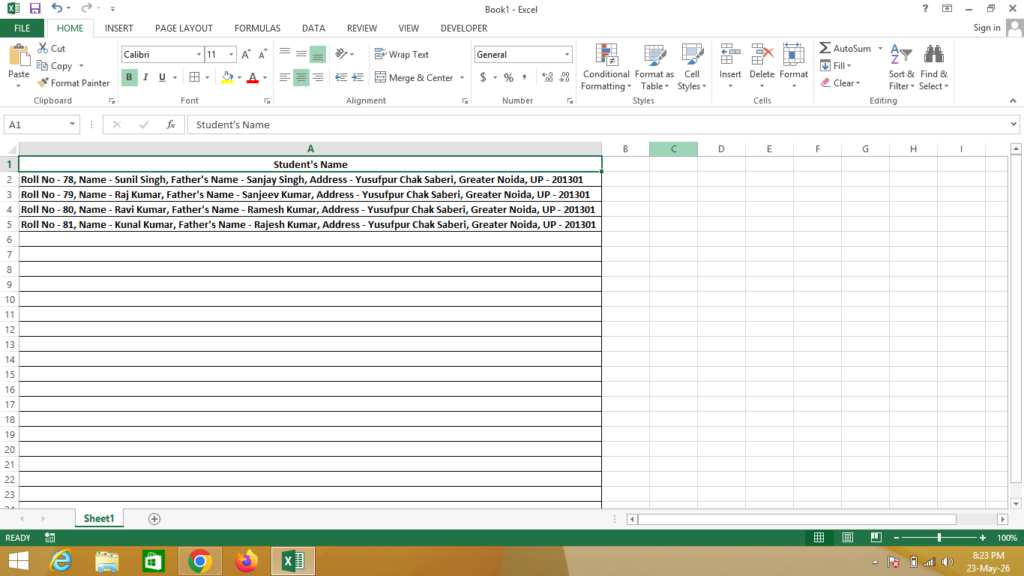
Open Excel and Type Text Here in One Column and Single Row as Given Below.
And Copy Given Code
Now Press Alt + F11 To Enter Code “Windows will be shown as Given Below”

Click On Insert – Click On Module – Paste Code Here
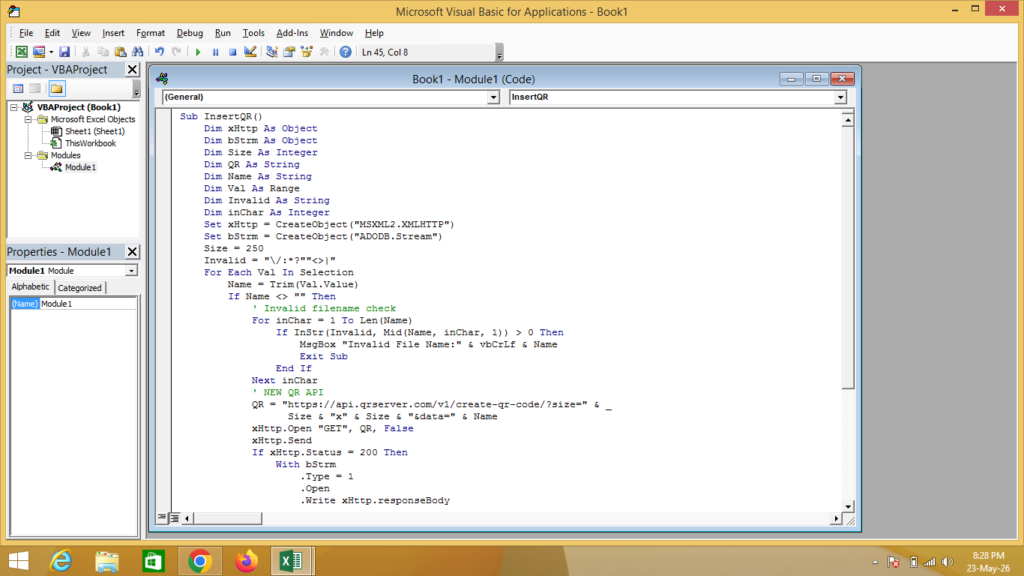
After Paste Code Here – Save File – Click on File – Click on Save Option – Save as Excel Macro Enabled Workbook
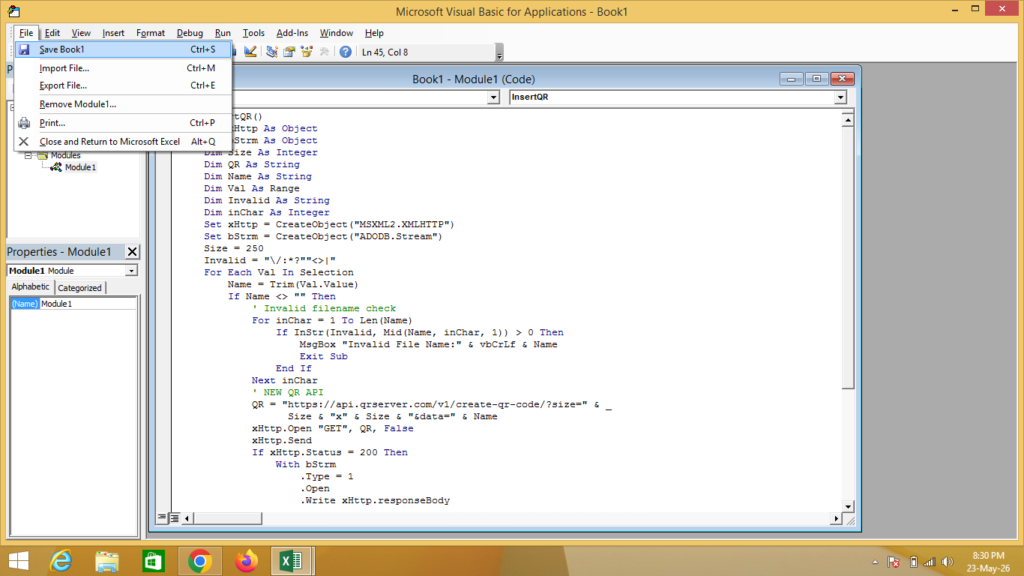
Save as Given Below
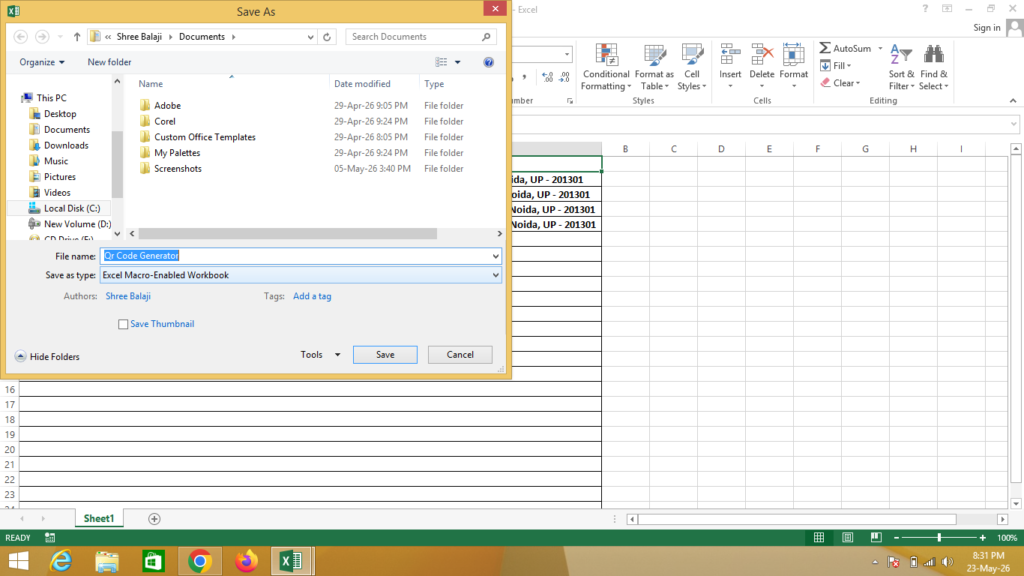
After Saved Files Close Excel File or Macro Window
Now Again Open Saved File – Now Click on Enabled Content
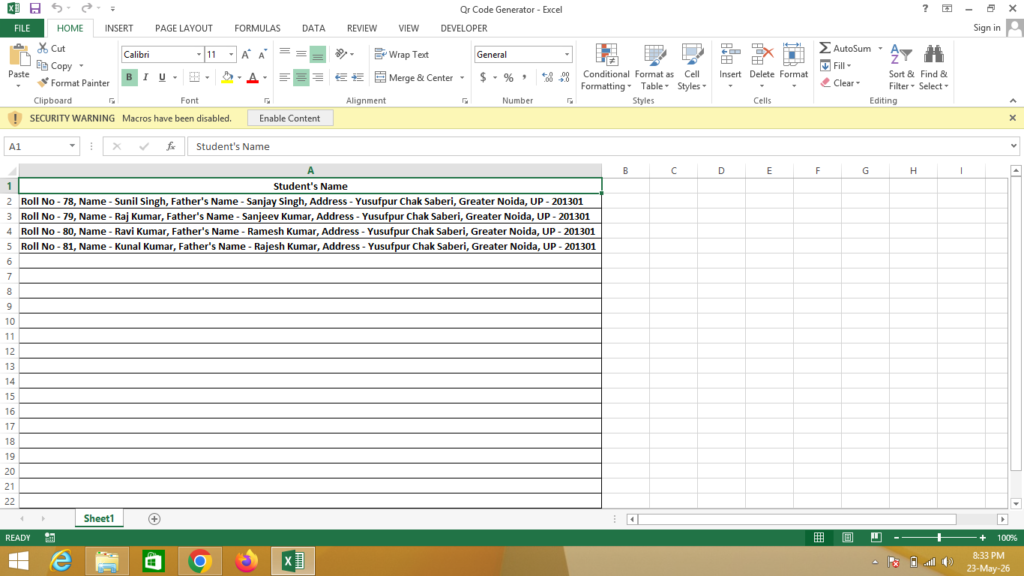
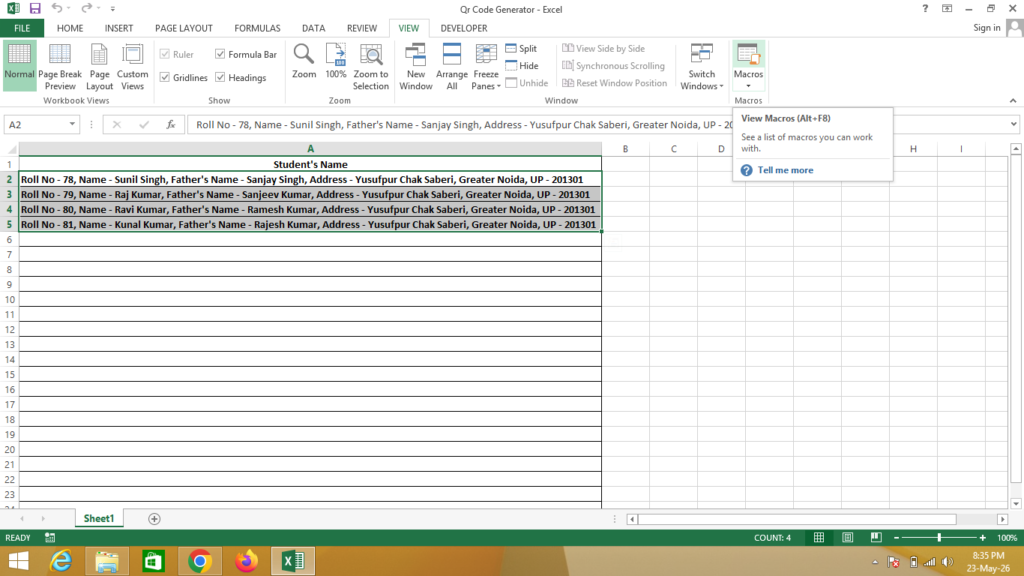
Now Select Data as You Want To Generate QR Code
Click On View – Click On Macros as Given Below
Click On Run To Generate QR Code
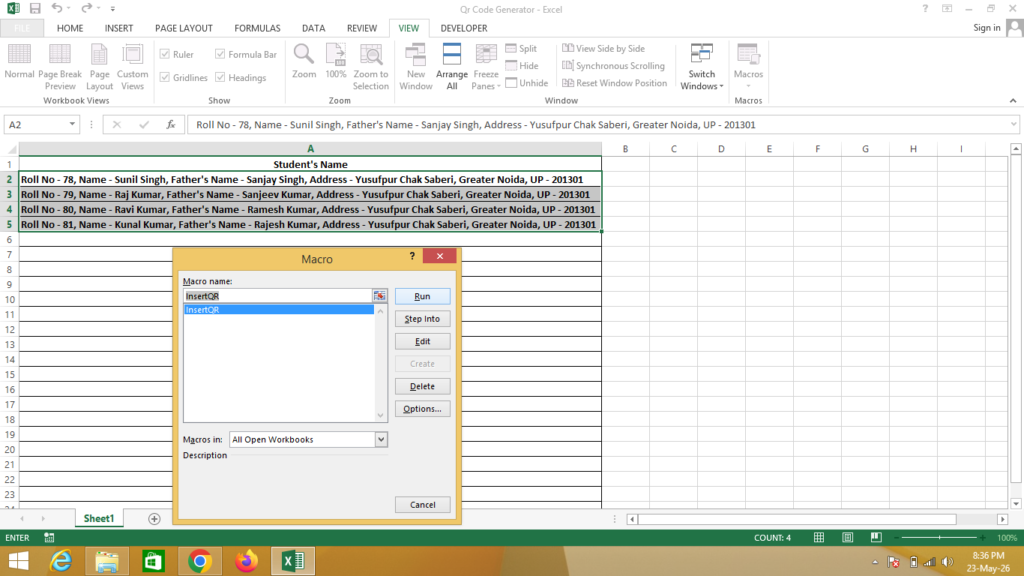
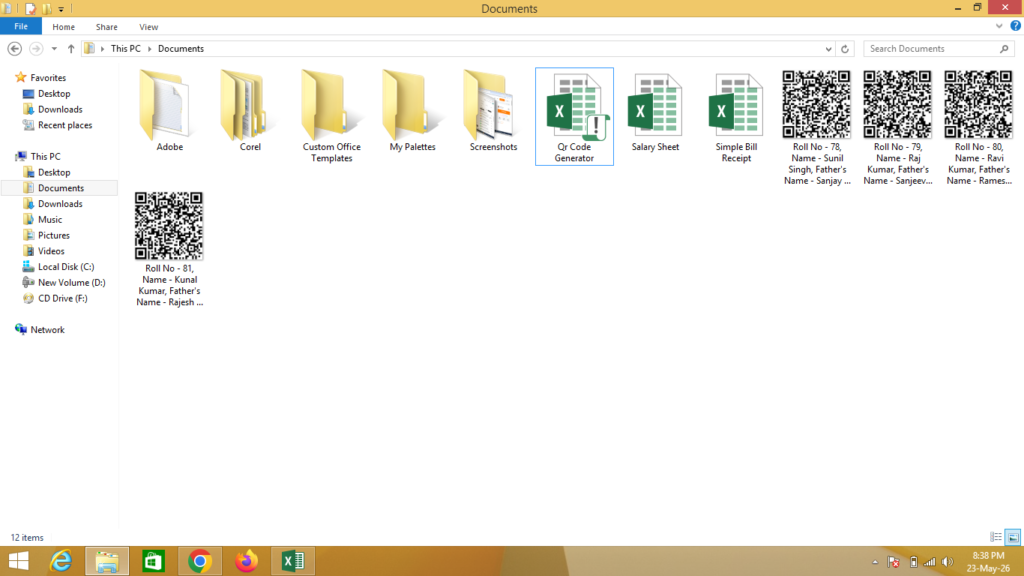
Now You Can See QR Code Generated Successfully
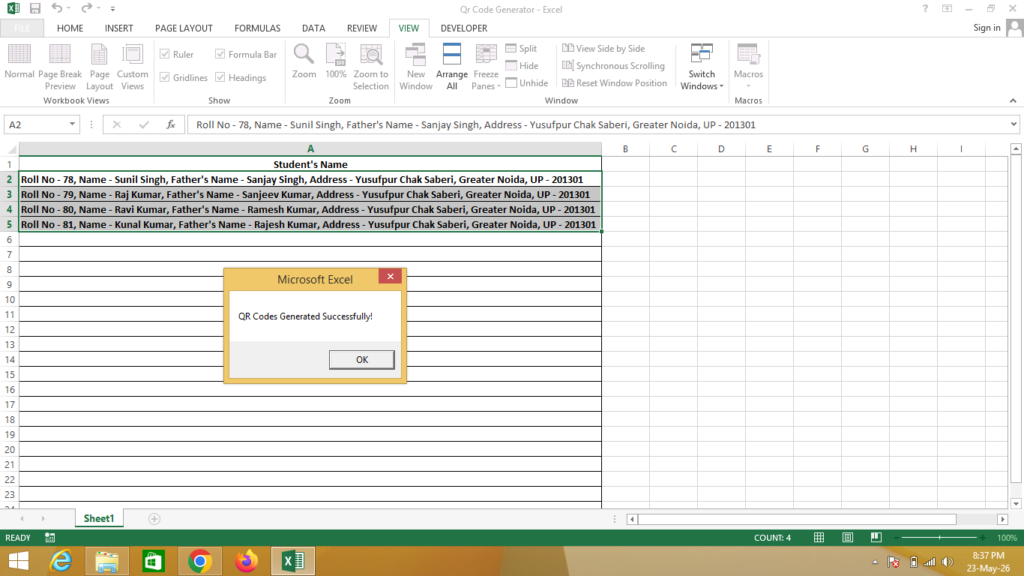
QR Code Generated as You can see list